Black Screen Test
Introduction
A black screen test is an essential tool for diagnosing display issues such as dead pixels and backlight bleed. It helps you identify display defects that may not be visible during regular use but can affect the overall viewing experience. In this article, we’ll explain how to perform a black screen test, why it’s important, and how it can help improve your screen’s quality.
What is a Black Screen Test and Why is It Important?
A black screen test involves displaying a completely black screen on your device to check for irregularities in the display. This test is useful for identifying dead pixels, backlight bleed, and other display issues that can affect the quality of your screen.
1. Dead Pixel Test with Black Screen
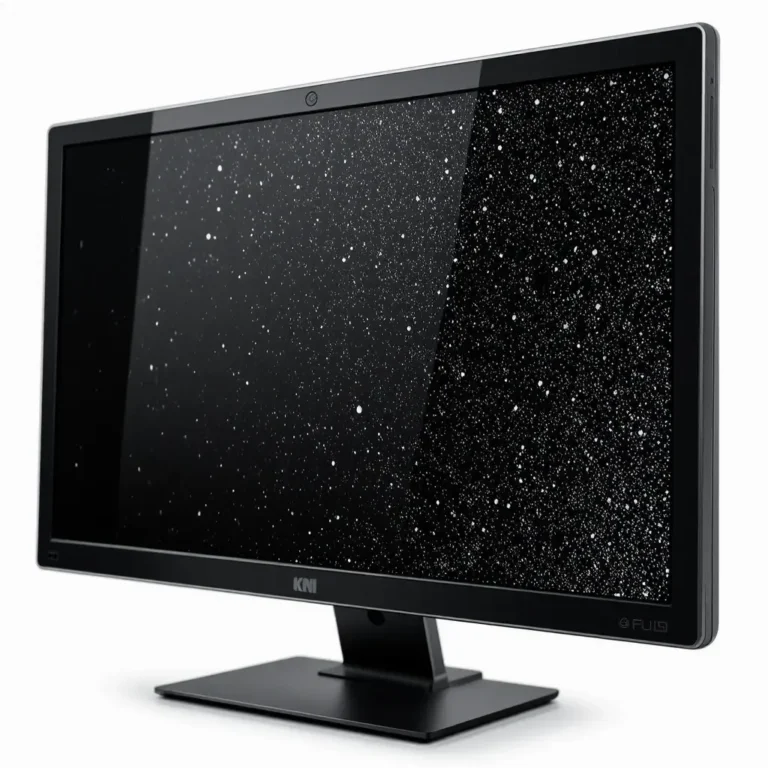
Dead pixels are pixels that do not display any color or appear stuck in one color. They are often visible when viewing a black screen because they stand out as bright spots against the dark background. Running a black screen test helps you easily identify these dead or stuck pixels.
2. Backlight Bleed Detection
Backlight bleed occurs when light leaks around the edges of your screen, causing uneven brightness. A black screen test is the easiest way to spot backlight bleed, as it allows you to identify any brighter areas in the black background. This issue can be particularly noticeable in dark scenes when watching movies or playing games.
3. Contrast and Uniformity Check
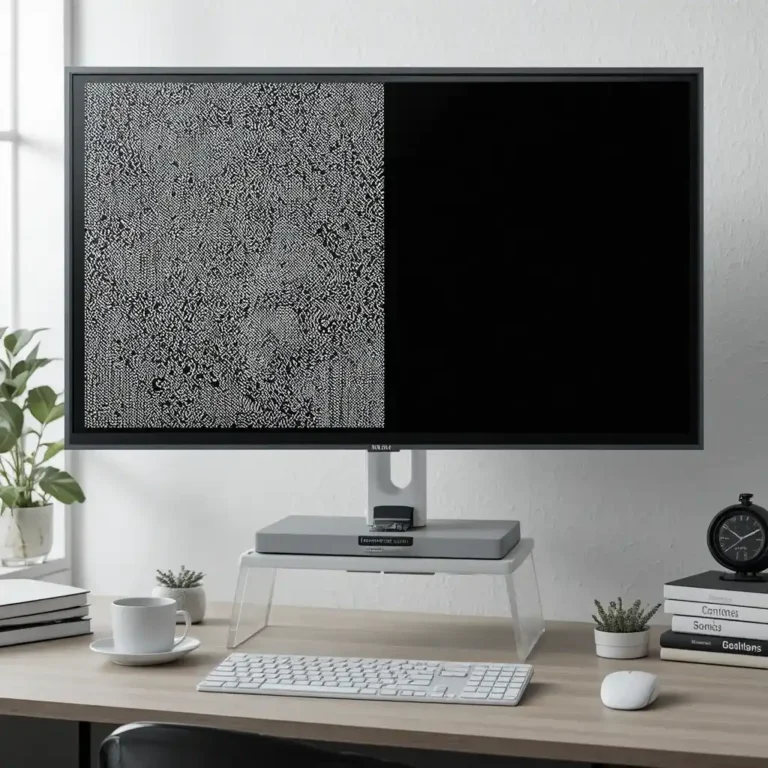
A black screen test also helps check the uniformity of your display’s backlight and the contrast ratio. Ideally, the entire screen should be a consistent shade of black without any light spots or uneven brightness. If there are inconsistencies, it could indicate a problem with the display’s uniformity.
How to Perform a Black Screen Test
Performing a black screen test is easy and can be done in several ways, whether using online tools, apps, or manually adjusting your device. Here are the steps to perform the test:
1. Use Online Black Screen Test Tools
There are several websites that allow you to display a black screen for testing purposes. Tools like Dead Pixel Buddy or LCD Dead Pixel Test can display a solid black screen and allow you to inspect your display for dead pixels, backlight bleed, and other issues.
2. Manually Adjust Brightness and Color Settings
If you want to perform a black screen test without using an online tool, you can manually adjust your device’s brightness to the lowest setting and display a completely black image. You can create a black image using any image editing software or search for a black screen image online.
3. Use Software Tools for Advanced Testing
For a more comprehensive black screen test, you can use software specifically designed to test your screen for dead pixels and backlight bleed. Software tools like Pixel Test or CheckPixels can give you a detailed report on your screen’s health.
How to Fix Issues Identified in a Black Screen Test
Once you have identified issues using a black screen test, here’s how to fix common problems:
1. Fixing Dead Pixels
Dead pixels can be fixed by using software that attempts to cycle colors rapidly in the affected area. There are several apps available that help in “fixing” dead pixels by attempting to unstick them through rapid color cycling.
In some cases, dead pixels are permanent and may require the screen to be replaced. If your device is under warranty, you can check with the manufacturer for a potential replacement.
2. Addressing Backlight Bleed
Backlight bleed is typically a hardware issue, and the effectiveness of the fix depends on the severity of the problem. If the bleed is minor, adjusting the brightness and contrast settings might help reduce the appearance of light leakage.
If the backlight bleed is severe, it could indicate a more significant issue with the display’s hardware. In such cases, you may need to have the display replaced or repaired by a professional.
3. Improve Display Uniformity
For uniformity issues, adjusting your device’s settings might help, but in most cases, hardware calibration is needed to achieve the best results. If the screen’s uniformity issues are noticeable and bothersome, it might require professional calibration or even a display replacement.
How to Prevent Future Black Screen Test Issues
To avoid encountering issues during your next black screen test, here are a few tips:
- Regularly Update Software: Keeping your operating system and drivers up to date can help prevent software-related issues that might affect the screen’s display.
- Use Screen Protection: Using a screen protector or case can help prevent physical damage to your display, which can cause problems like dead pixels or uneven backlighting.
- Keep Your Device Cool: Avoid overheating your device by using it in well-ventilated areas. Overheating can lead to display issues, including backlight bleed.
- Check for Defects Upon Purchase: If you buy a new device, always perform a black screen test right away to ensure the screen is free from defects like dead pixels or backlight bleed.
Conclusion
A black screen test is a valuable tool for identifying common display issues such as dead pixels, backlight bleed, and contrast problems. By running this test regularly, you can ensure that your device’s screen remains in top condition. Whether you use online tools or software, conducting a black screen test can help you spot and fix issues early, ensuring a better viewing experience.